Why Connect Shopify
Connect Shopify when you want Krev to work from your actual product catalog. Krev can import product names, descriptions, product URLs, and product images so your creative work starts with the right source material.
You control the permissions
The setup uses a Shopify custom app created inside your Shopify account. You choose the access scope, install it on your store, then paste the Client ID and Client Secret into Krev.
Krev only needs product read access for catalog import. You can revoke access anytime by disconnecting Shopify in Krev or uninstalling the custom app in Shopify.
Before You Start
- You need owner or developer access to Shopify Admin.
- Your Shopify store should already have products with images.
- Krev currently needs
read_productsso it can import products and product images. - Do not share the Client Secret outside Krev. Treat it like a password.
Create the Shopify Custom App
Step 1: Open app development in Shopify
- Sign in to Shopify Admin.
- Go to Settings > Apps.
- Open Develop apps, then choose Create app in Dev Dashboard.
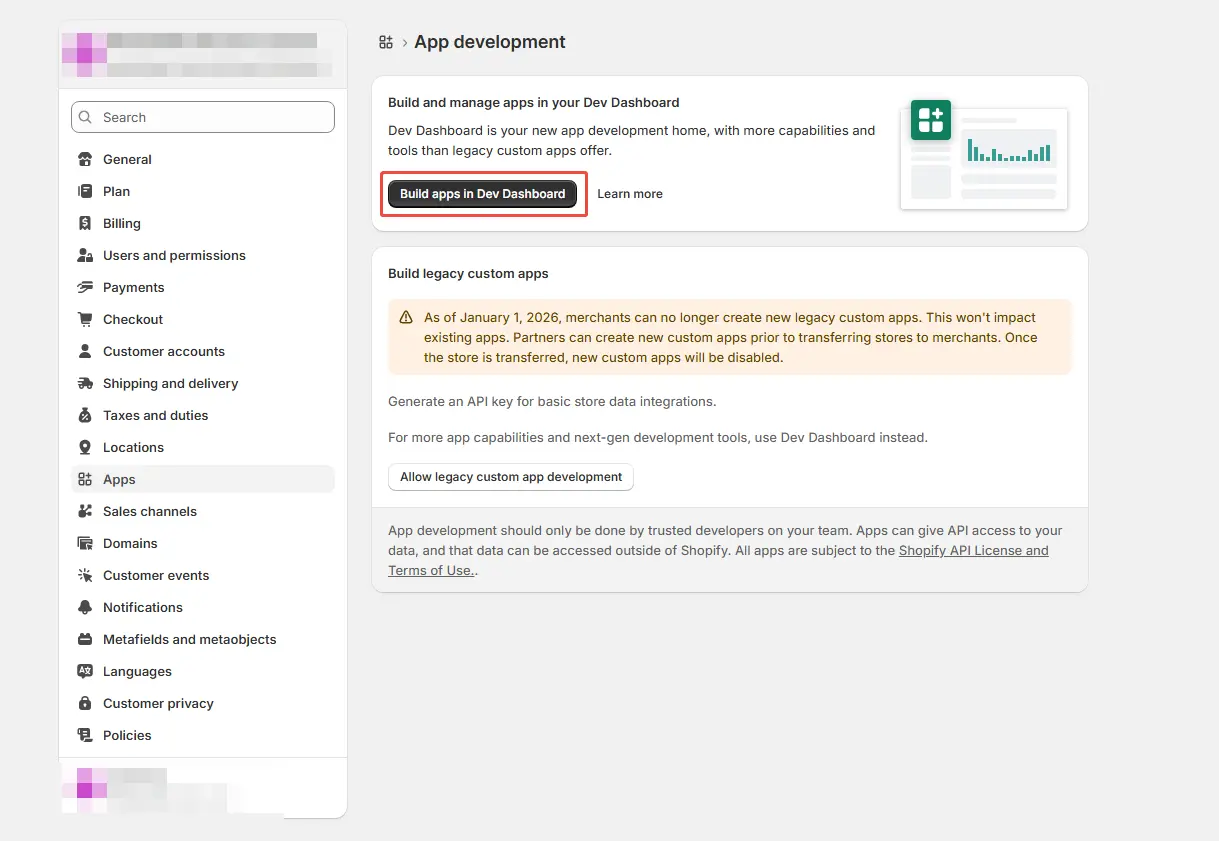
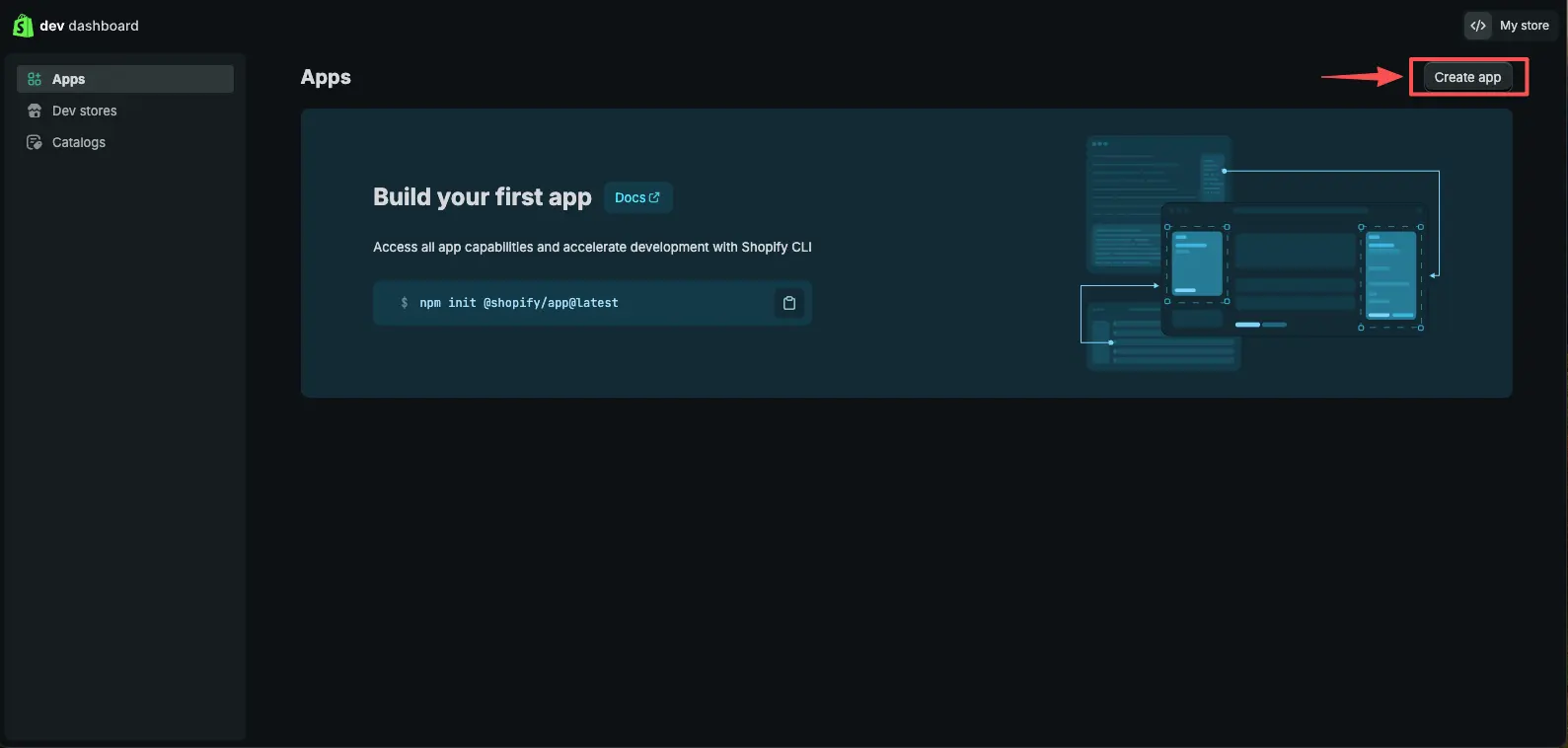
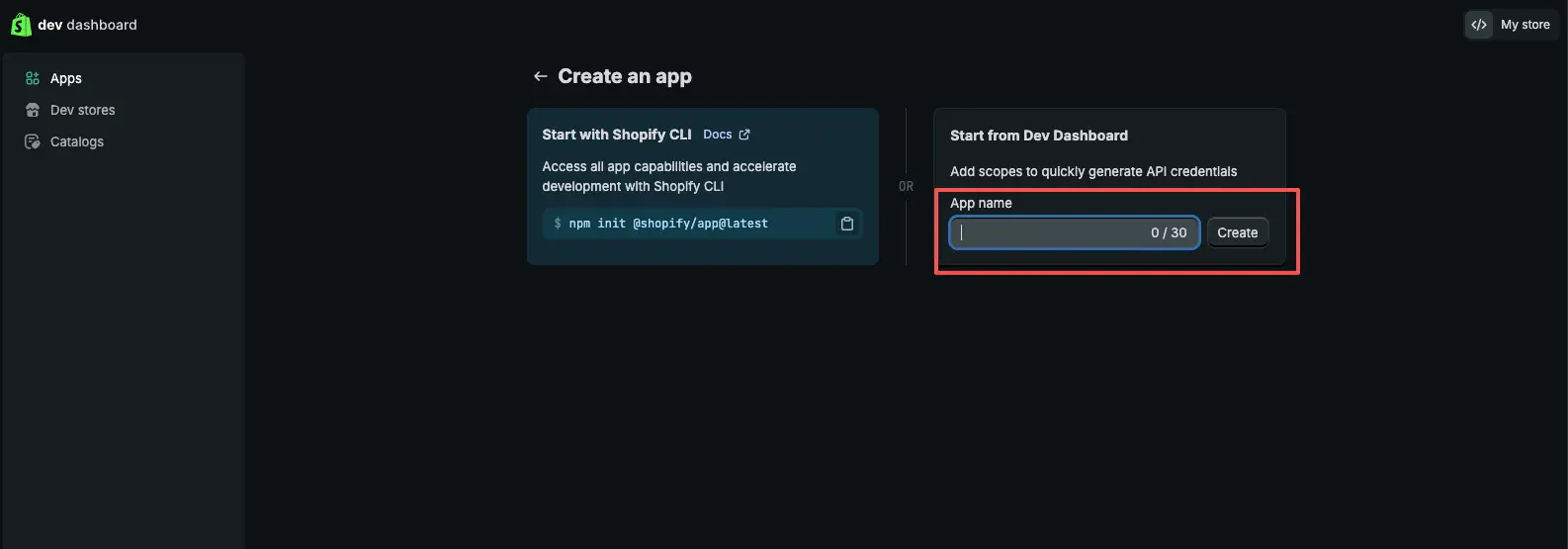
Step 2: Create the app in the Dev Dashboard
- In the Shopify Dev Dashboard, click Create app.
- Choose Start from Dev Dashboard.
- Name the app
KrevorKrev Custom App, then create it.
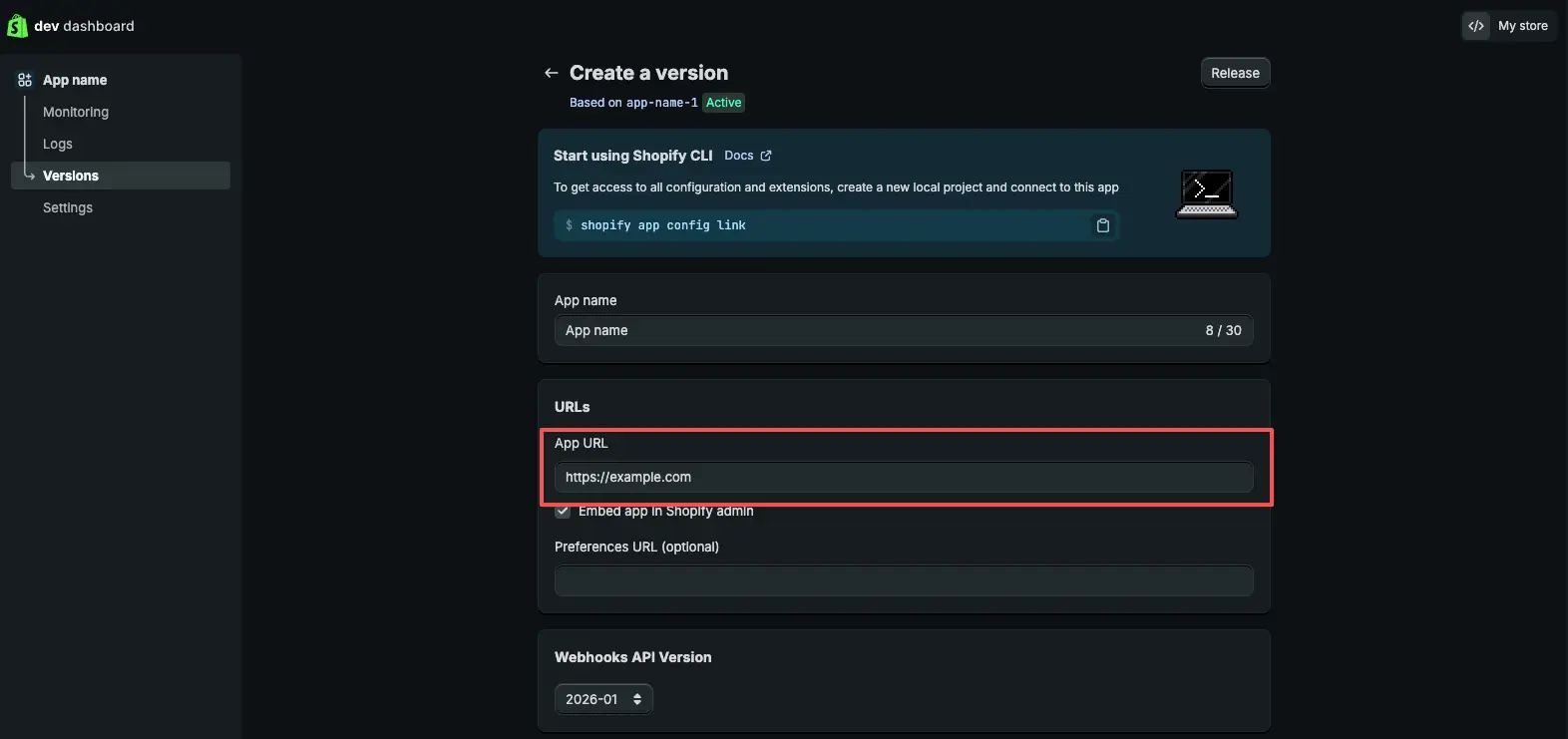
Step 3: Add the app URL and scopes
- In the app setup screen, set the App URL to
https://app.krev.ai. - Turn off Embed app in Shopify admin.
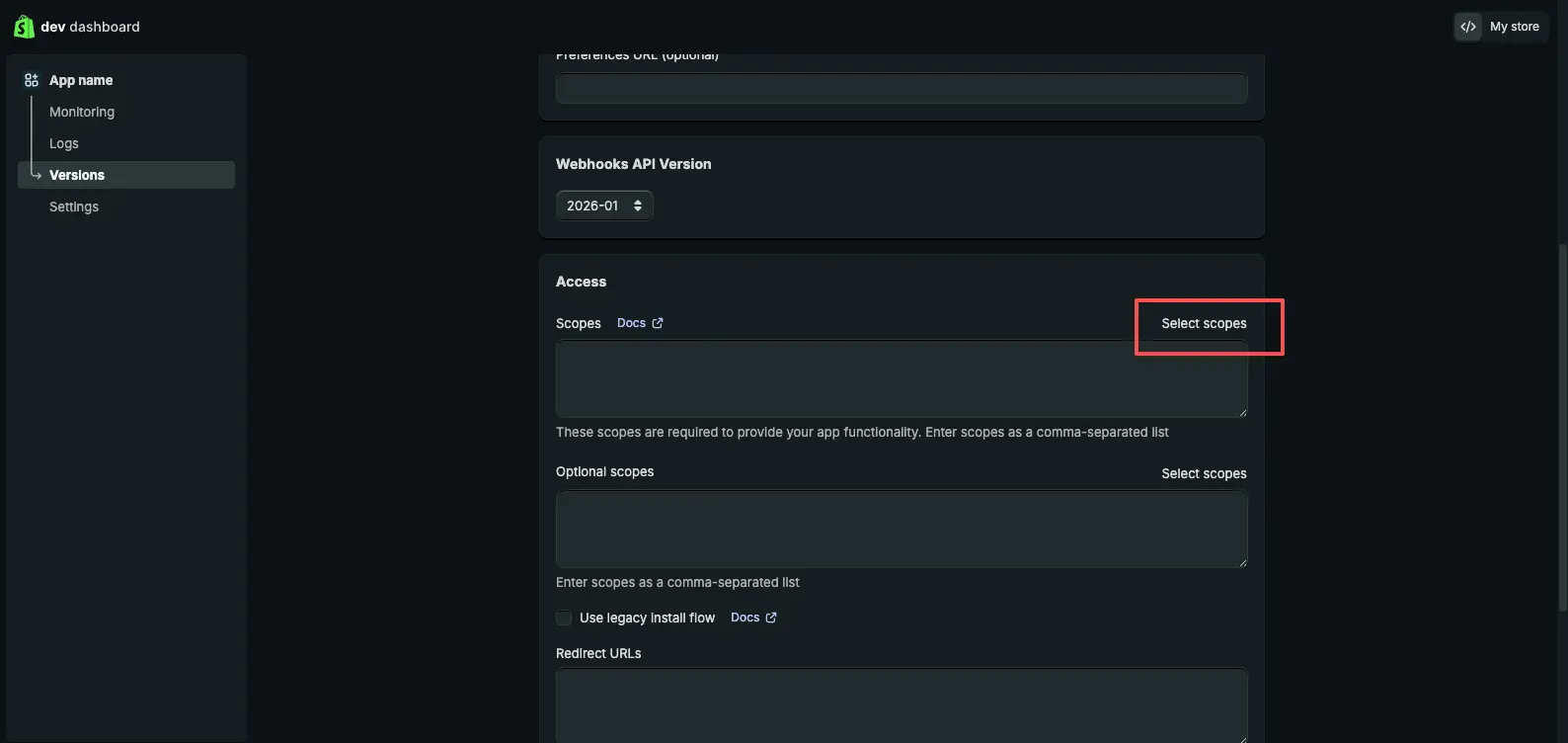
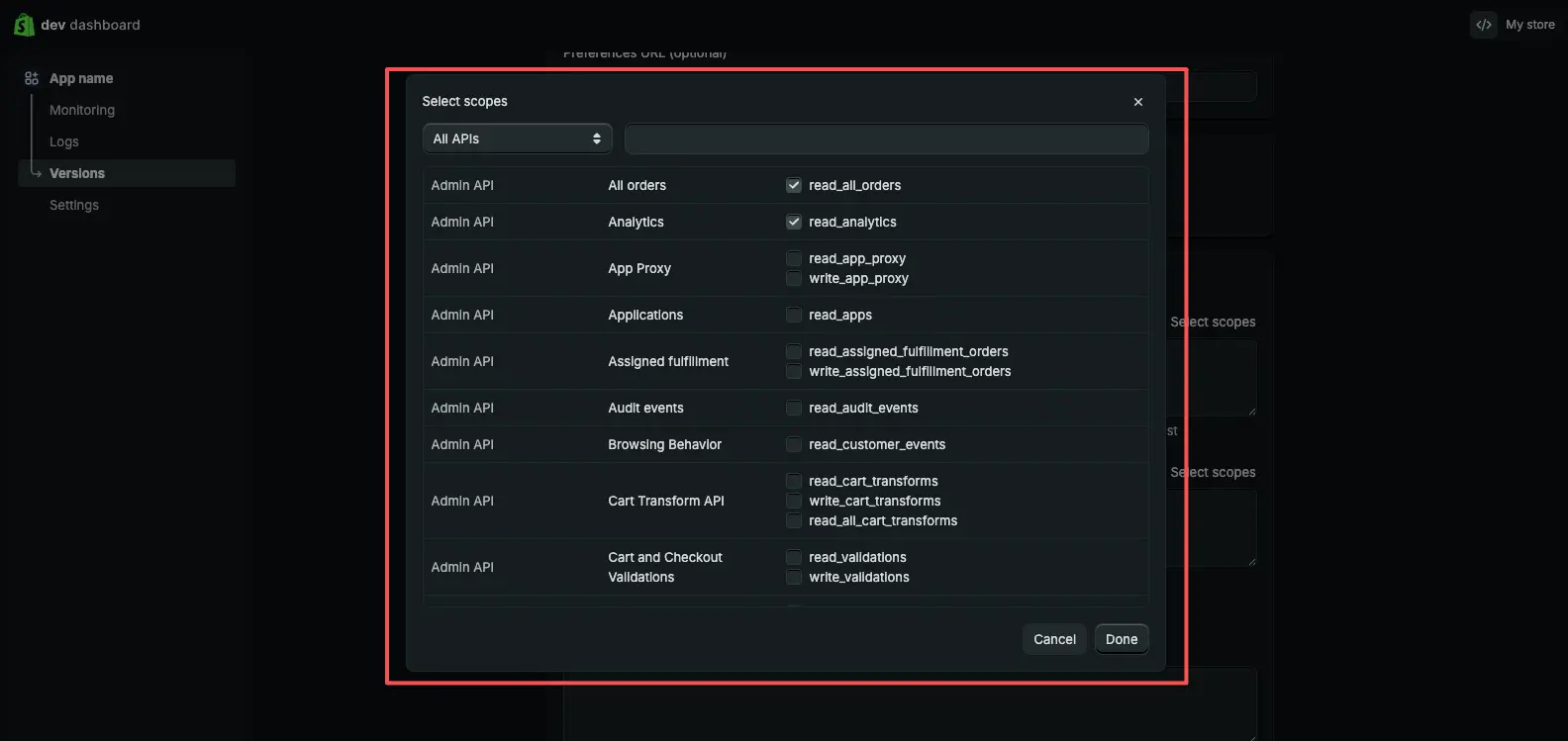
- Under access scopes, choose Select scopes.
- Select
read_products, then save the scopes.
Step 4: Release and install the app
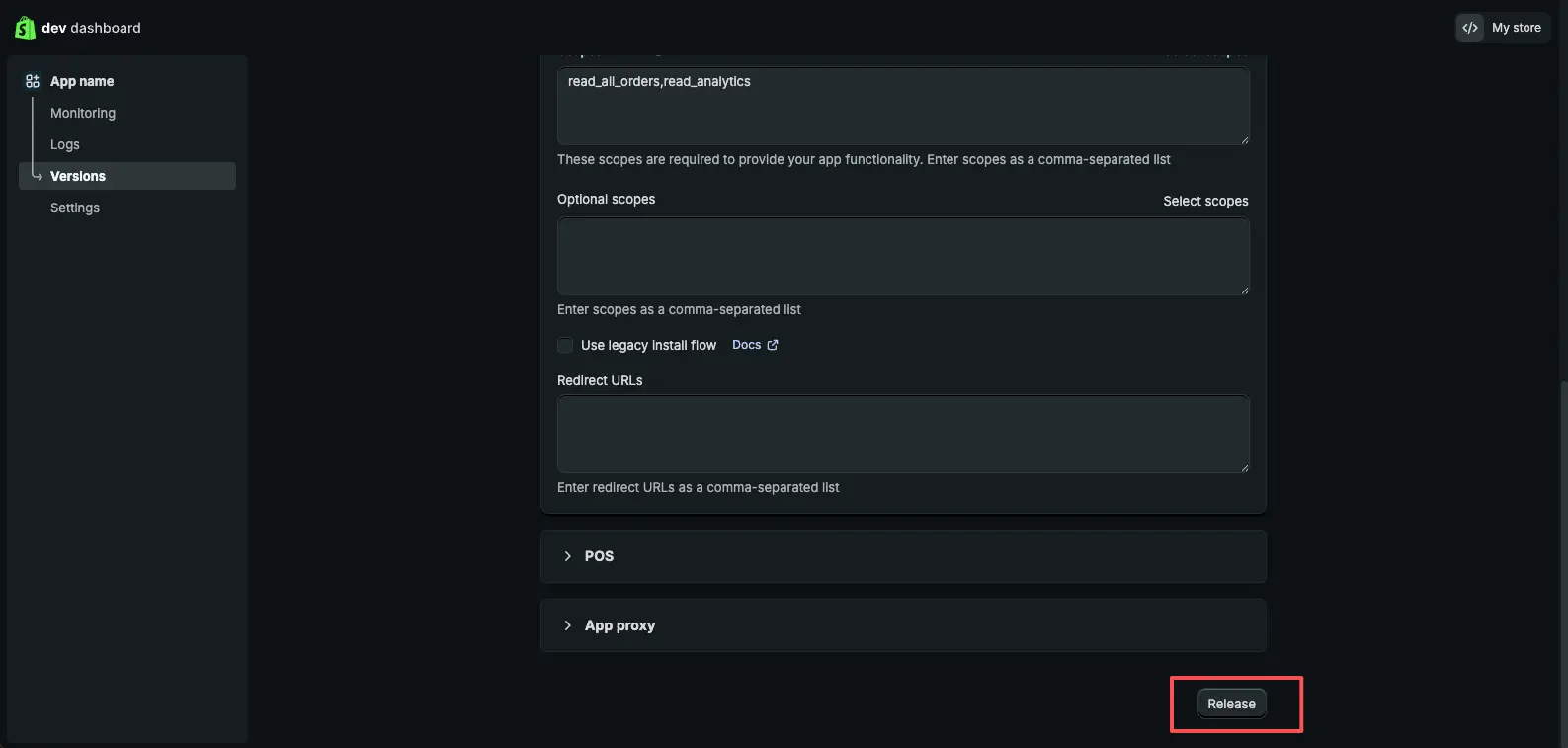
- Click Release, then confirm the release.
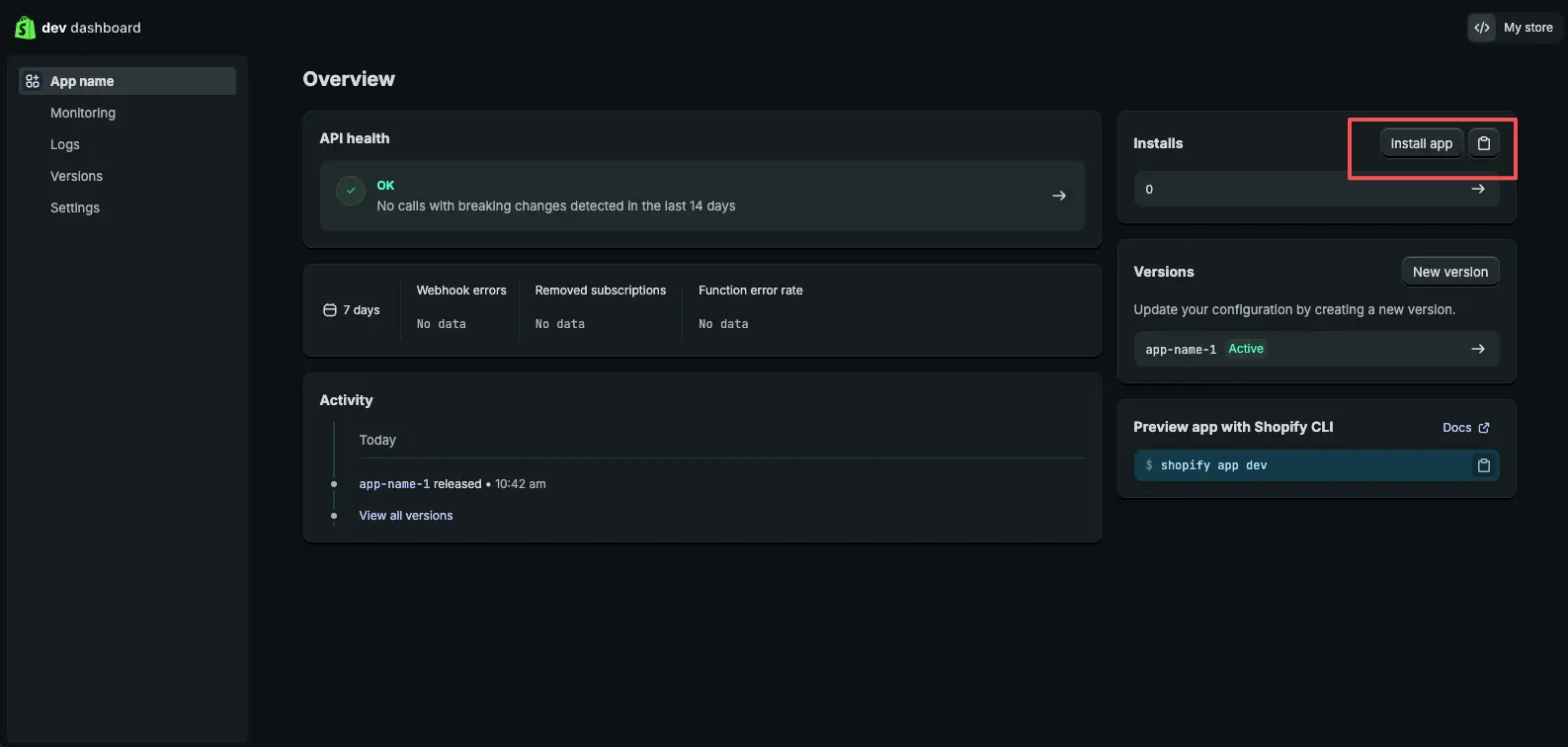
- Open the app overview and click Install app.
- Choose the Shopify store you want to connect.
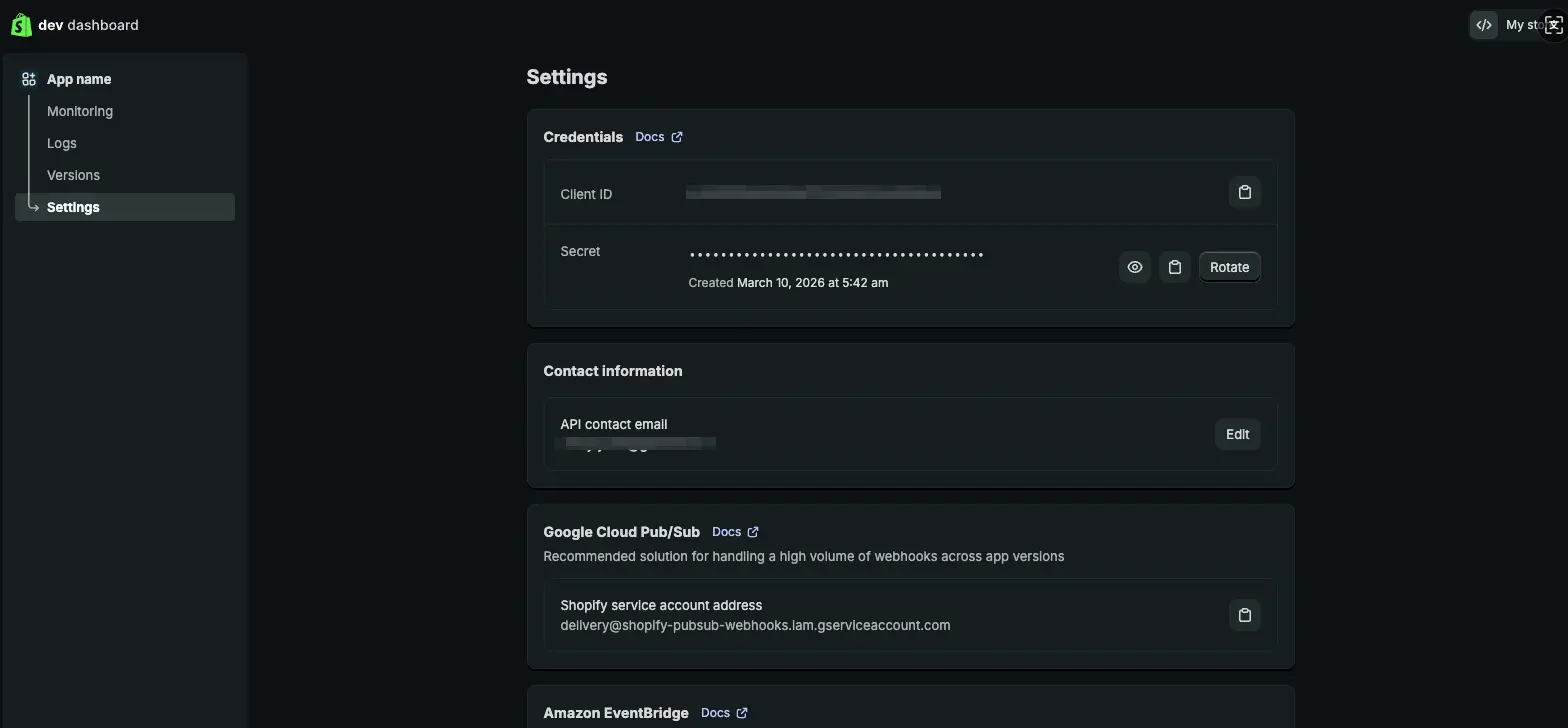
Step 5: Copy the credentials
- Return to the app in Shopify Dev Dashboard.
- Open Settings.
- Copy the Client ID and reveal the Client Secret.
Complete the Connection in Krev
- Open Krev and go to Settings > Integrations.
- Open Shopify.
- Enter your store domain, for example
your-store.myshopify.com. - Paste the Client ID and Client Secret from Shopify.
- Click Connect.
- After the connection succeeds, choose the Shopify products you want to import into Krev.
Connection Failed?
| Symptom | Likely cause | Fix |
|---|---|---|
| Credential error | Client ID or Client Secret was copied incorrectly. | Copy both fields again and remove extra spaces. |
| Permission error | The app was not released, installed, or granted read_products. | Return to Shopify Dev Dashboard and confirm release, install, and scopes. |
| No products appear | The store has no active products with images. | Add product images in Shopify, then reopen the import flow in Krev. |
FAQ
Will Krev edit products in my Shopify store?
No. The current Shopify connection only needs product read access so Krev can import catalog details and product images.
Can I connect more than one Shopify store?
Create one custom app per Shopify store, then repeat the connection flow for each store you want to use with Krev.
How do I disconnect Shopify?
In Krev, open Shopify under Settings > Integrations and choose Disconnect. In Shopify, you can also uninstall the custom app to fully revoke access.